

Breaking

Tampilkan postingan dengan label BLOGGER HACK. Tampilkan semua postingan
Agustus 15, 2023

Cara hilangkan Tanda Obeng dan Tang atau Quick Edit di Blogger


Pengguna blogger mungkin sering melihat ada icon gambar obeng dan tang kecil di bagian widget atau sidebar blog.

Icon obeng dan tang ini merupakan tombol Quick Edit atau Pengeditan Cepat, jadi ketika Anda mengklik gambar icon tang dan obeng maka Anda dapat langsung mengedit bagian widget tersebut.


Oh iya, sebenarnya itu bukan icon obeng dan tang melainkan gambar icon obeng dan kunci pas.

Saya sendiri merasa terganggu ketika melihat icon obeng dan kunci pas ini ketika membuka blog, oleh karena itu saya akan menghilangkan icon obeng dan tang atau tombol quickedit di blogger.

Tombol quick edit ini hanya dapat dilihat oleh admin blog saja dan harus sudah login, jadi pengunjung blog Anda tidak akan melihat gambar icon obeng dan tang.


Ada tiga cara untuk menghilangkan tombol quickedit di blog Anda, langsung saja ikuti langkah-langkahnya di bawah ini:

1. Menyembunyikan Icon Obeng dan Tang dengan CSS

Anda dapat menghilangkan atau lebih tepatnya untuk cara ini yaitu menyembunyikan gambar icon obeng dan tang atau tombol quick edit.

Kode css ini hanya akan menyembunyikan saja, jadi Anda tidak akan melihat tombol quick edit di blog Anda ketika menambahkan widget baru.

Caranya sebagai berikut:

1. Masuk ke blogger.com
2. Klik Tema > Edit HTML
3. Kemudian tambahkan kode ini di atas kode ]]></b:skin>

.quickedit{display:none;}


4. Lalu klik Simpan tema

2. Menghilangkan Icon Obeng dan Tang dengan Menghapus Kode

Cara yang kedua ini yaitu berfungsi untuk menghapus gambar icon obeng dan tang atau tombol quickedit di blog Anda.

Silahkan ikuti langkah-langkahnya di bawah ini:

1. Masuk ke blogger.com
2. Klik Tema > Edit HTML
3. Kemudian cari kode ini:

<b:include name='quickedit'/>


4. Silahkan hapus semua kode tersebut
5. Lalu klik Simpan tema


3. Menonaktifkan Tombol Pengeditan Cepat

Lalu yang ketiga silahkan Anda nonaktifkan fungsi tombol pengeditan cepat.

Caranya sebagai berikut:

1. Masuk ke blogger.com
2. Klik Tata Letak > Blog Posts > Edit
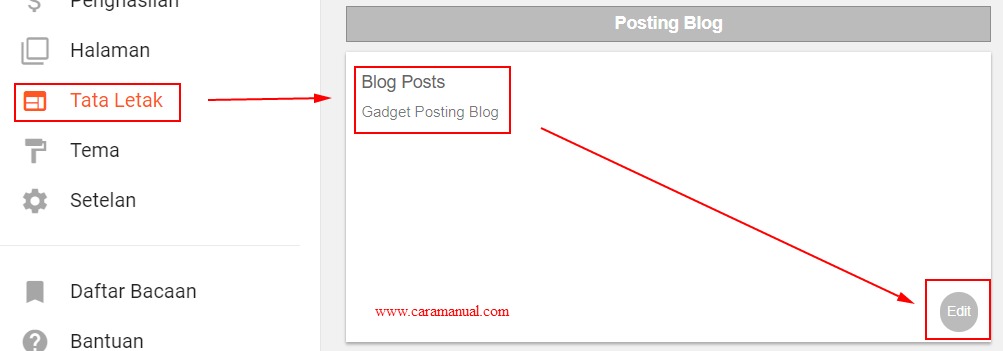
Gadget Blog Posting


3. Kemudian jangan centang bagian Tunjukkan Pengeditan Cepat
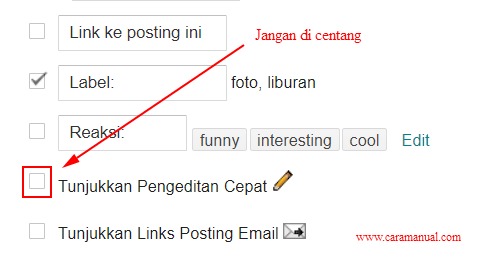
Tunjukkan Pengeditan Cepat


4. Jika sudah klik Simpan

Silahkan Anda terapkan semuanya cara di atas, icon obeng dan tang hilang dari blog Anda.

Itulah artikel tentang cara menghilangkan icon obeng dan tang atau quick edit di blogger, selamat mencoba. Semoga bermanfaat



Juli 15, 2011

Blogger Hacks

Here you will find great blogger hacks  which are useful to bloggers using the Blogger platform. Enjoy!

Expandable Posts or Read More Hack

Here is classic way of expanding posts which takes the reader to the post page upon clicking “Read more” link.
1) Login to blogger dashboard and go to Layout->Edit Html
2) Find  </head >and add this code before it
<pre>
&lt;b:if cond=’data:blog.pageType != “item”‘&gt;
&lt;script type=”text/javascript”&gt;
var fade = false;
function showFull(id) {
var post = document.getElementById(id);
var spans = post.getElementsByTagName(’span’);
for (var i = 0; i &amp;lt; spans.length; i++) {
if (spans[i].id == “fullpost”) {
if (fade) {
spans[i].style.background = peekaboo_bgcolor;
Effect.Appear(spans[i]);
} else spans[i].style.display = ‘inline’;
}
if (spans[i].id == “showlink”)
spans[i].style.display = ‘none’;
if (spans[i].id == “hidelink”)
spans[i].style.display = ‘inline’;
}
}
function hideFull(id) {
var post = document.getElementById(id);
var spans = post.getElementsByTagName(’span’);
for (var i = 0; i &amp;lt; spans.length; i++) {
if (spans[i].id == “fullpost”) {
if (fade) {
spans[i].style.background = peekaboo_bgcolor;
Effect.Fade(spans[i]);
} else spans[i].style.display = ‘none’;
}
if (spans[i].id == “showlink”)
spans[i].style.display = ‘inline’;
if (spans[i].id == “hidelink”)
spans[i].style.display = ‘none’;
}
post.scrollIntoView(true);
}
function checkFull(id) {
var post = document.getElementById(id);
var spans = post.getElementsByTagName(’span’);
var found = 0;
for (var i = 0; i &amp;lt; spans.length; i++) {
if (spans[i].id == “fullpost”) {
spans[i].style.display = ‘none’;
found = 1;
}
if ((spans[i].id == “showlink”) &amp;amp;&amp;amp; (found == 0))
spans[i].style.display = ‘none’;
}
}
&lt;/script&gt;
&lt;/b:if&gt;
</pre>
3) Find this div for the post-body and add the portion of code in red color.
   <div class='post-body'  expr:id='"post-" + data:post.id' >

     <b:if cond='data:blog.pageType == "item"'>
        <style>#fullpost{display:inline;}</style>
        <p><data:post.body/></p>
     <b:else/>
        <style>#fullpost{display:none;}</style>

        <p><data:post.body/></p>

       <span id='showlink'>
        <a expr:href='data:post.url'>Read More......</a>
       </span>
       <script type='text/javascript'>
         checkFull("post-" + "<data:post.id/>");
       </script>
     </b:if>

     <div style='clear: both;'/> <!-- clear for photos floats -->
   </div>
4)Go to Settings->Formatting-> Post Template
In Post Template copy/paste these lines and save settings
Type your summary here
<span id=”fullpost”>
Type rest of the post here
</span>
5)If you create new post you will see area where you should type summary and where to type rest of post

Remove NavBar in Blogger


If you one of these who hate blogger navbar , you came to the right place , here I will show you how to remove it.
1) Login to blogger dashboard and go to Layout->Edit Html
2)Add the following CSS   anywhere in your template between the <style> tags.
#navbar-iframe
{
height:0px; visibility:hidden; display:none;
}
Juli 15, 2011

Adding Number Of Views For A Article | Blogger Tips

No doubts that Wordpress has much more familiar and customizable blogging platform than that of blogger. However after Wordpress, Blogger is the one who leads the blogging Network which is owned by Google.
Needless to define the blogger plug-in that I am talking about. It shows the number of hits that your specific post have.
How to add this widget in your blog?
Login to your blogger account.
Go to Layout>Edit HTML
It is just a copy paste step.
Copy the code below:
<b:if cond='data:blog.pageType == &quot;item&quot;'>
<div align='center' style='border:solid 2px #999999; padding:2px;
margin:2px; width:100px; display:compact'>
<script src='http://nirav07.ulmb.com/counter.php' type='text/javascript'/>
Views</font></div></b:if>
Search for the following code:
<data:post.body/>
Note: Make sure that Expand Widget is checked.
Now paste the above copied code before or after the <data:post.body/>.
Pasting the code before it will add the plug-in before the post body starts. Pasting the code after it will add the plug-in after the post body, i.e. at the end of post body (See image above)
After doing this click on Save Template button.
And you are done. Now everybody can see the number of your post views. Hope you find this article helpful.

Juli 15, 2011

How to Set Up Your GoDaddy Domain with Blogger | Blogger Hacks

If you’re blogger and want to makes your blog look professional then you should buy own domain name. Here I’ll show you how to set up your GoDaddy domain with blogger. Just follow steps below.
1) Go to godaddy.com and login to your account
2) On the left , under My Products click on Domain Manager
3) Click on domain name that you want to set up with blogger
4) On the bottom click on link Total DNS Control
5) Under CNAMES (Aliases) click edit icon for www
6) Edit Points To Host Name to ghs.google.com
7) Return to domain manager , click on domain and right of forwarding click link Manage
8) Type your domain name and select forward with masking
9) Login to your blogger account and go to Settings -> PUblishing and clic on link Custom Domain
10) On the right you’ll find link Switch to advanced settings , click on it
11) In input box type your goddady domain name and click on Save Settings